What the HDMI Port on a Ugreen NAS Is Used For
Ugreen network-attached storage (NAS) units have an HDMI port that can be used to watch media, as well as to reach the BIOS and a terminal. Playing media requires the Ugreen phone app.
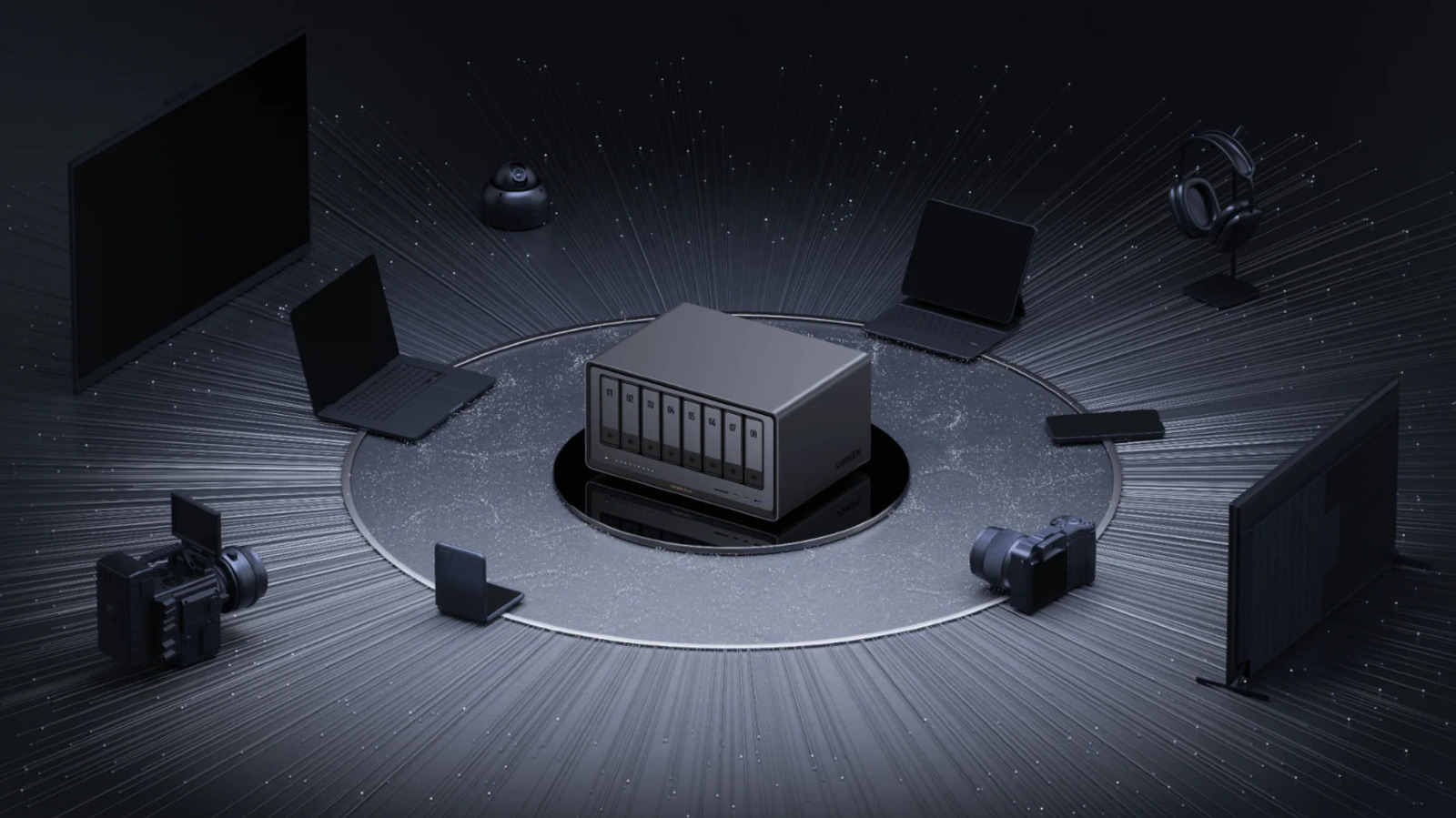
Ugreen network-attached storage (NAS) units include an HDMI port, which some users find puzzling because such devices are normally used remotely over the internet. A NAS lets people access their files without paying cloud storage fees, but the port still serves several practical purposes.
Watching media on a screen
The simplest use is watching media files stored on the device. Instead of streaming to a smart TV or a Roku Streaming Stick, the NAS can be connected directly to a TV, a PC monitor or a projector.
Connecting it is not as straightforward as with other devices. Once the NAS is linked to a screen, it shows a notice saying the Ugreen phone app must be used to play content. The app has an option to cast media to the screen over the HDMI cable, and the phone then works as a remote control. Since the NAS has no physical remote, this is the only way to browse the library and start playback.
BIOS and terminal
With both a screen and a keyboard attached, users can reach the device's BIOS (the basic firmware that starts a computer) and a terminal. These are useful for replacing the server's operating system, troubleshooting boot problems or changing advanced settings without a remote SSH connection.
To enter the BIOS, start the NAS with a screen connected and repeatedly press Ctrl and F12 together right after startup begins. Anyone planning to change BIOS settings should first look under the Advanced tab for Watchdog Settings and disable Watch Dog Control. While it is enabled, the NAS reboots after a set period of time.
Though not officially documented, Ugreen users online have reported that the terminal can also be reached over HDMI. With a screen and keyboard attached, pressing Ctrl Alt F1 should open it, although different NAS models may use different function keys. By default, the terminal is accessed through an SSH client on another computer on the local network. Settings in the terminal should be changed only by those who know what they are doing, because mistakes can cause problems that are hard to fix.