Simple tweaks that can make your Apple CarPlay experience better
A handful of small settings changes on the iPhone can make CarPlay safer and more convenient to use, a timing made more relevant by new features coming with iOS 27.
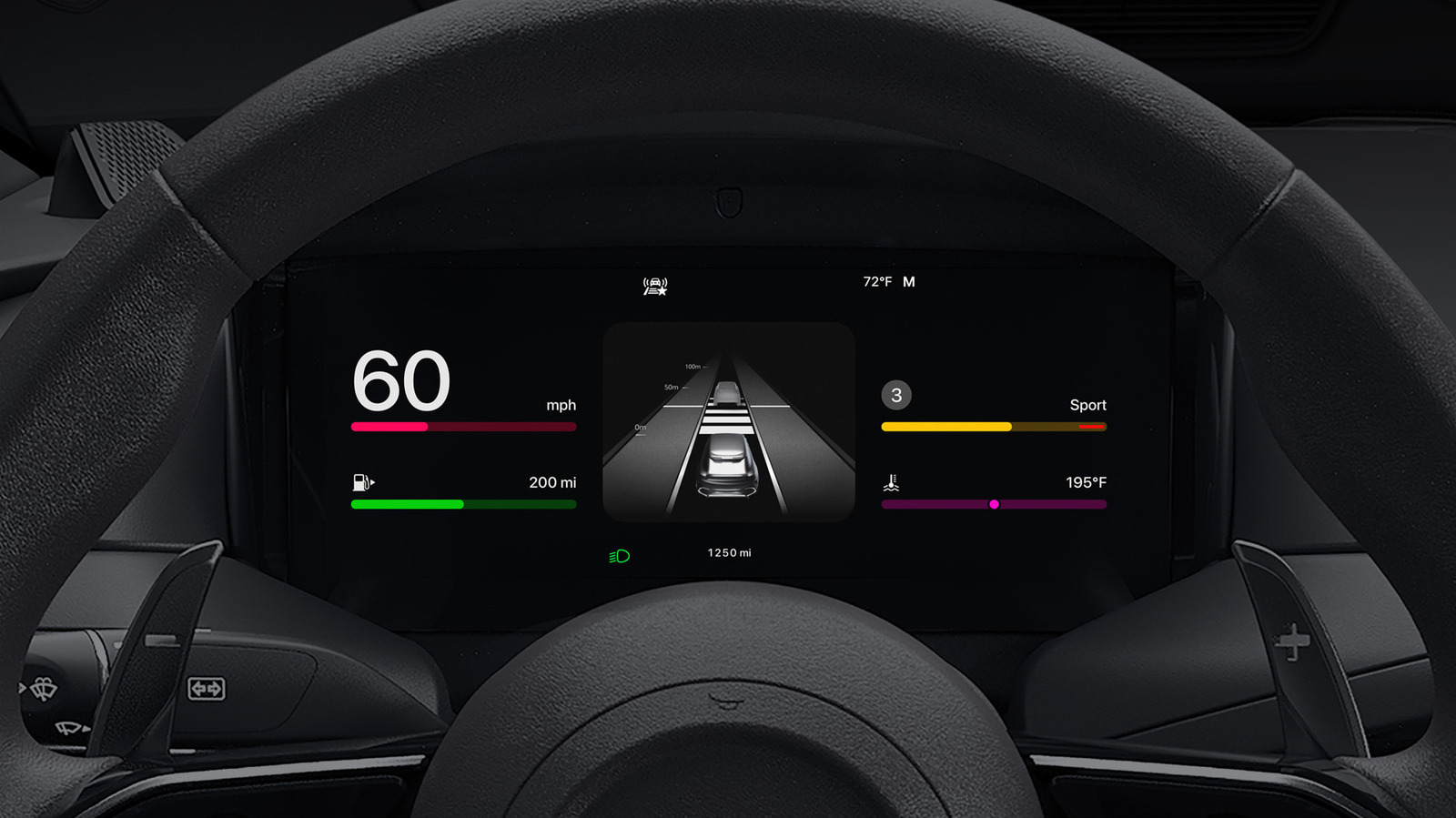
Apple's CarPlay turns a vehicle's infotainment display into a navigation and communication hub, and a bit of customization can make it work even better. Notably, most layout adjustments happen on the iPhone itself rather than on the car's screen.
Adjusting layout and appearance
To rearrange app icons, users go to the iPhone's Settings, then General, then CarPlay, select their vehicle and open the Apps menu, where apps can be dragged up or down, added with a green plus, or removed with a red minus. Starting with iOS 26, CarPlay also supports widgets — such as weather, calendar and clock — which can rotate automatically throughout the day using the Smart Rotate feature.
While CarPlay's brightness generally follows the car's dashboard controls, users can also set it to switch automatically between light and dark mode through the Appearance settings. Wallpaper and icon color options are available as well for further customization.
Voice control and reducing distractions
Siri is built into CarPlay, allowing drivers to send messages, start navigation or change music through voice commands, and iOS 27 brings an upgraded version of the assistant for use in the car. Additional voice-based control is available through the Voice Control accessibility feature.
To cut down on distracting notifications while driving, users can enable Driving Focus, which limits alerts while still allowing calls or messages from selected contacts to come through.
Experienced CarPlay users also switch between wireless and wired connections depending on the situation, opting for a wired connection on longer trips to keep the phone charged. Other helpful tricks include pinning frequent conversations in Messages, which also pins them within CarPlay, and building custom automations through the Shortcuts app.


