How to fix app scaling problems on the Samsung Galaxy Z Fold 8
Some owners of Samsung's foldable Galaxy Z Fold 8 report apps that do not fit the inner 4:3 display properly. The aspect ratio can be changed for each app in the settings.
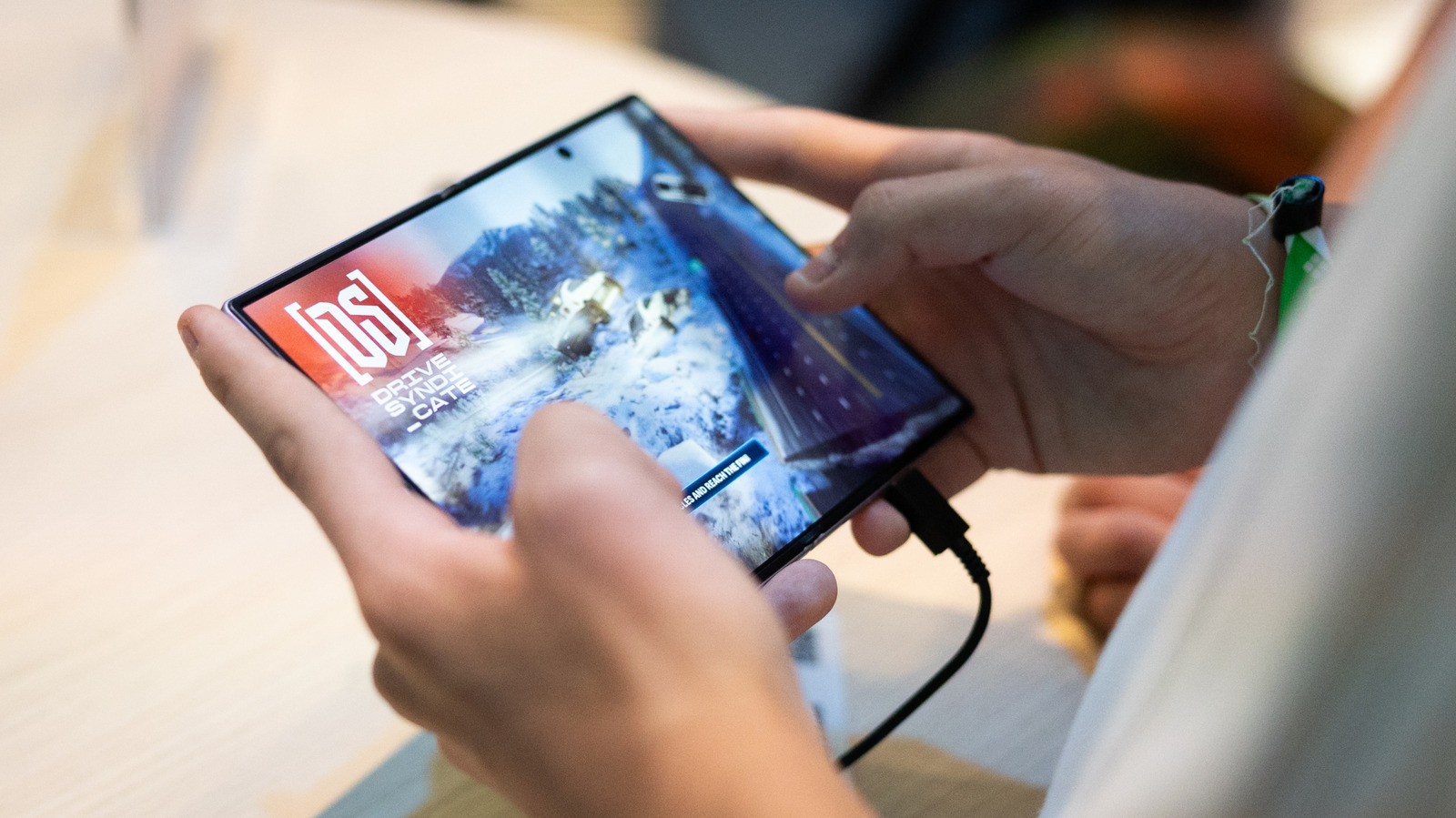
Owners of Samsung's foldable smartphone, the Galaxy Z Fold 8, are reporting that some apps do not adapt correctly to the phone's inner display, which has a 4:3 aspect ratio. People are discussing the issue on various forums and looking for ways to get more out of the large screen. Tech site Engadget has gathered the possible fixes.
Samsung presented the Galaxy Z Fold 8 at its Unpacked event in July. The phone's App Continuity feature lets users move between the outer and inner screens without interruption. However, not every app automatically adjusts to the proportions of the inner display.
How to change an app's aspect ratio
Aspect ratio is the proportional relationship between width and height; a square, for example, is 1:1. According to the site SamMobile, it can be set for each app individually. With the phone unfolded, go to Settings > Display > Aspect ratio. Depending on the One UI sub-menu, the same section may also be reached through Settings > Apps. There you can pick an app and choose full screen, 4:3 or 16:9. The screen notes that apps running in the background may need to restart after the change. The chosen ratio becomes the default whenever that app is opened.
An alternative method
Another option is to press and hold the app icon and tap the small info button in the top right corner. Then select App aspect ratios and choose the preferred default ratio.
Even after this, an app may not fit the screen perfectly. Some users have reported awkward positioning or cropping when the app itself has not been optimized. Engadget's review of the Galaxy Z Fold 8 nevertheless praised the inner screen's 4:3 ratio, partly because it leaves less letterboxing around widescreen content than the squarer inner displays of earlier Galaxy Z Fold models.